
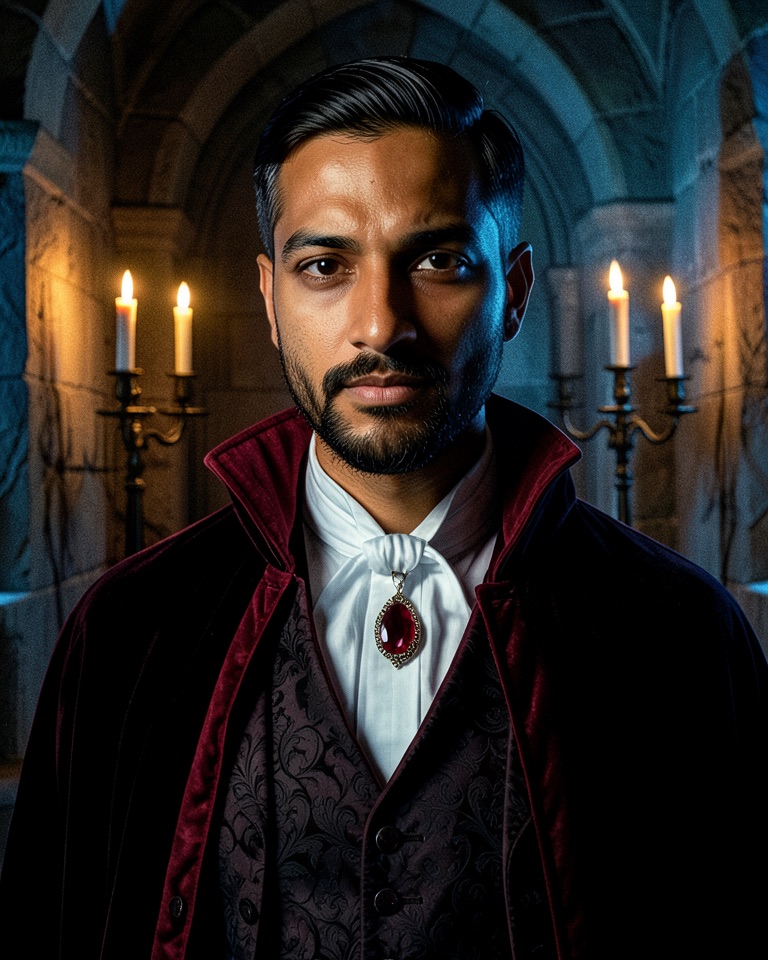
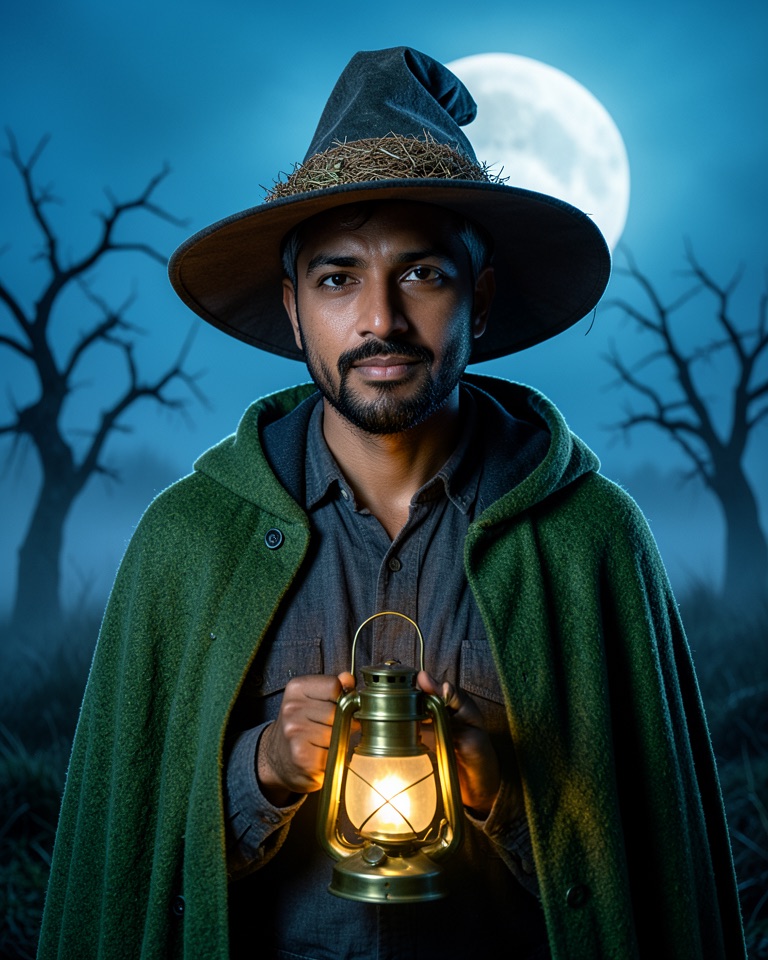
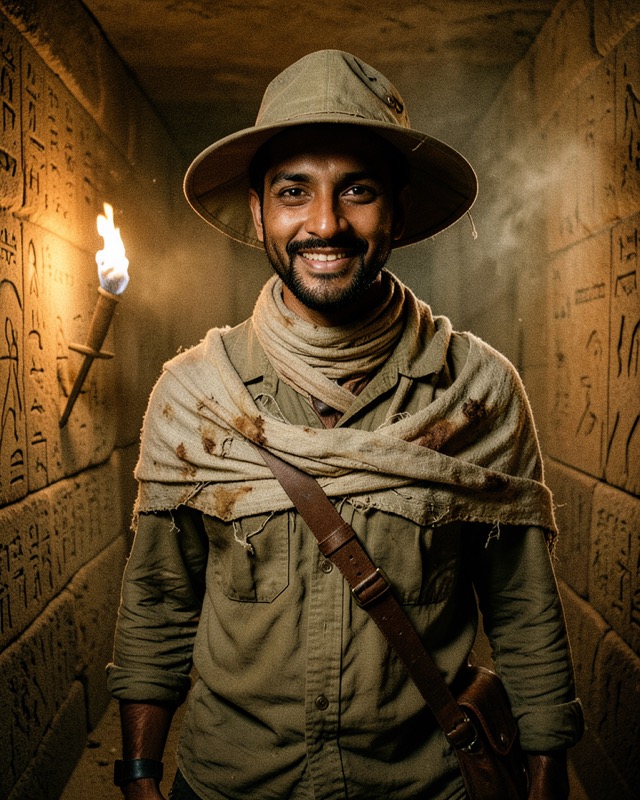
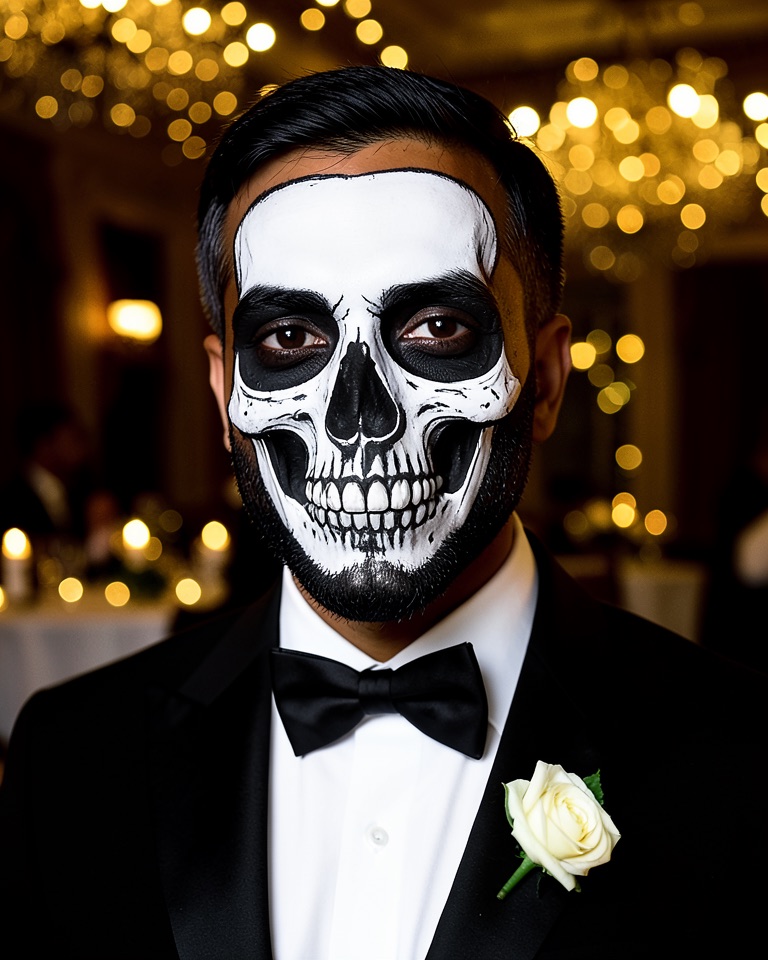
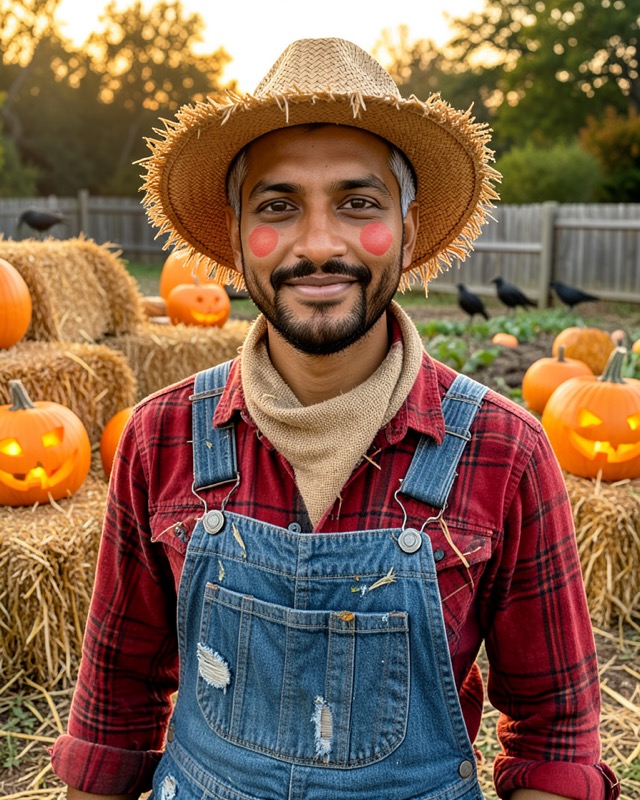
Your photo is the starting point
The AI Photo Editor starts from the portrait you upload, and the prompt describes everything that should change around you: the costume, the set and the light. Because the costume is redrawn on your own photo, posture and proportions stay yours.
That is why each template above starts with a “preserve” sentence and ends with an “avoid” sentence. The middle of the prompt is the costume, the set and the light. If a result drifts, it is usually because the face part of the prompt was shortened or removed.
Pick a portrait the editor can keep
The model can only preserve what it can see. A good source photo does more for likeness than any extra adjective in the prompt.
- Face the camera or turn slightly; both eyes, the mouth and the jawline should be visible.
- Use daylight or a bright room. Heavy beauty filters and strong colour casts get baked into the costume version.
- Crop to head and shoulders. A tiny face in a group photo gives the model too little to hold on to.
- Glasses, beards and hairstyles are kept unless you ask to change them; say so in the prompt if you want them gone.
- Use your own photo or one an adult has agreed to. Do not edit photos of children, public figures or anyone who has not said yes.
Make your Halloween portrait step by step
- Copy a template Open “Image editing prompt” on the look you want and press Copy prompt.
- Open the AI Photo Editor Upload your portrait, paste the prompt and choose a portrait ratio such as 4:5 or 3:4 for social posts.
- Adjust one detail at a time Swap a colour, prop or setting in the middle of the prompt. Leave the preserve and avoid sentences as they are.
- Generate and compare Check the eyes, skin tone and hairline against your original before you download. Run it again if the face drifted.
From still to short clip
Three templates include an “Animate this look” prompt. Download your still, open the Veo 3.1 tool in image-to-video mode, upload the still as the first frame and paste that prompt. Clips are 8 seconds with native audio. Keep motion small: candle flicker, a glance, a breeze. Big movements are where faces start to change.
Video costs more than a still: image-to-video clips run 100 to 200 credits depending on the Veo 3.1 route, so get the still right first.